Why you can't normally click Grasshopper geometry
To understand the problem, you have to understand where Grasshopper geometry actually lives.
Grasshopper is a parametric environment that sits on top of Rhino. When your definition runs, every mesh, surface, and curve it produces exists in memory and is painted into the Rhino viewport as a temporary preview. It looks completely real. You can orbit around it, you can see it shaded. But it is not a Rhino object. It has no place in the Rhino document, no object ID, nothing the rest of Rhino can grab onto.
That has two consequences that matter here. First, you can't select it. Rhino's normal selection tools, snaps, and gumball only work on real document objects, and preview geometry is not one of them. Second, it's ephemeral. Every time the definition recomputes, the old preview is thrown away and a fresh one is drawn. There's nothing stable to hold a selection against.
The usual escape hatch is to bake the geometry, which copies the preview into the Rhino document as a permanent object you can finally click. But baking severs the parametric link. The baked mesh no longer updates when you change a slider, and now you're managing a static copy by hand. For anything interactive, that defeats the point.
The project that started it: faces as attractors
The specific need to create this script came from a recent project, recent relative to when this was written, anyway. I wanted the ability to choose faces on a 3D model and use those faces as attractors: anchor points that drive a generated pattern. Geometry near the chosen faces gets one treatment, geometry further away gets another, and the pattern falls out of that distance relationship.
For that to work, I needed to manually pick the faces directly on the model. Typing in face indices by hand is tedious and time-consuming, which completely kills the "it's a design tool" feeling I wanted. It also made it hard to produce many iterations quickly, and unless you already knew Grasshopper and the underlying algorithm, the process wasn't intuitive. I wanted a real clicking method.
The core idea: cast a ray from the camera
The theoretical model is simple. You activate the script within Grasshopper, and when you click somewhere on the Rhino viewport, you're actually pointing into 3D space along a line that starts at the camera and goes straight through the pixel you clicked. Whatever face that line hits first is the face you meant to pick.
The plan was: project a line from the Rhino camera through the click point, find the first face of the Grasshopper mesh it crosses, and toggle that face into a selection list. Click it again to remove it.
How the script works
Step 01: Remember things between solves
Grasshopper components are stateless by default, they forget everything once they finish solving. To hold onto a selection across recomputes, the script stores its data in Rhino's sticky dictionary, a small persistent store that survives between solutions. The current selection set, a debug log, and the live mesh all get parked there so they outlive any single run.
Step 02: Listen for clicks
The center of the script is a mouse callback, a class built on RhinoCommon's MouseCallback that quietly watches the viewport. When you press the left mouse button, it wakes up and does its work; it ignores everything else. This callback is what lets the component react to the viewport without you having to re-run anything.
Step 03: Turn a 2D click into a correctly aimed 3D ray
On a click, the script grabs the click's screen coordinates and converts them into a line in world space using the viewport's ClientToWorld. That gives a line punching from the screen into the scene.
There's a catch: a hollow mesh has a front wall and a back wall, and a naive ray can accidentally report the back one. To avoid that, the script checks which end of the world-space line is closer to the camera, starts the ray there, and points it toward the far end. That guarantees the first hit is the face actually facing you, not the inside of the far wall. This was the detail that made selection feel correct instead of random.
Step 04: Find the face
The ray is intersected against the mesh. If it connects, the script gets the hit point, asks the mesh for the closest face to that point, and reads back that face's index, meaning its position in the mesh's list of faces.
Step 05: Toggle the selection
If the hit face is already selected, clicking removes it; if it isn't, clicking adds it. Simple on/off, which is exactly what you want for picking and un-picking faces by hand.
Step 06: Nudge the definition to update
Finally, it schedules a recompute a few milliseconds later so the component's outputs refresh with the new selection. Scheduling it (rather than recomputing immediately) keeps things from spiraling into an endless solve loop.
Inputs and Outputs
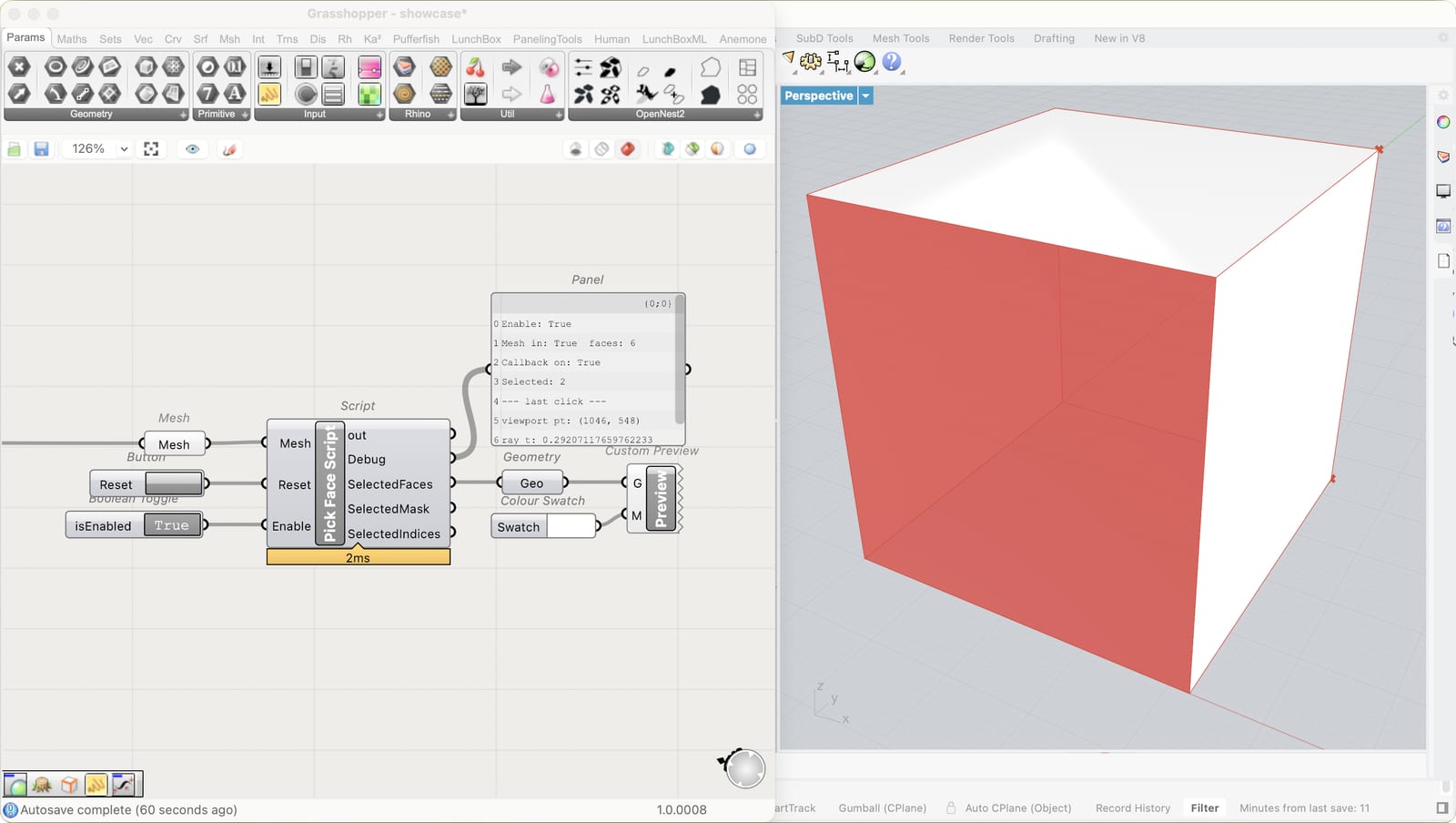
The component is deliberately small. Three inputs, four outputs.
Inputs
- Mesh : the target geometry you want to select faces on. This is the Grasshopper mesh the ray gets tested against.
- Reset : a button that clears the current selection and wipes the log, so you can start picking from scratch.
- Enable : a toggle that turns the whole thing on and off. The mouse callback is always-on by nature, so this matters: when you're done selecting, flip it off so the script isn't quietly listening for clicks and burning cycles in the background.
Outputs
- Debug : a running readout of what the script is doing: whether it's enabled, how many faces the mesh has, whether the callback is active, how many faces are selected, and details of the last click. This is what you watch when something isn't behaving.
- SelectedFaces : a preview mesh containing only the faces you've selected. It's built by duplicating the input mesh and deleting everything you didn't pick, so you can pipe it straight into the rest of your definition.
- SelectedMask : a list of true/false values, one per face in the mesh, marking which faces are selected. Handy whenever you need a per-face on/off pattern to drive other logic.
- SelectedIndices : the sorted list of selected face indices. The plainest form of the selection, useful for referencing faces directly or feeding them into an attractor setup.
Mac and Windows
I wrote this so it runs on both macOS and Windows. It leans on Rhino's cross-platform mouse callback rather than any OS-specific window hooks, so the same definition behaves the same whether you're on a Mac or a PC.
Code
Here's the full component:
import Rhino
import Rhino.UI
import Rhino.Geometry as rg
import Grasshopper as gh
import scriptcontext as sc

S_SEL, S_CB, S_LOG, S_MSH = "fp_selected", "fp_callback", "fp_log", "fp_mesh"
comp = ghenv.Component

# --- reset / init ---
if Reset:
    old = sc.sticky.get(S_CB)
    if old is not None:
        old.Enabled = False
    sc.sticky[S_CB] = None
    sc.sticky[S_SEL] = set()
    sc.sticky[S_LOG] = ["reset"]
if S_SEL not in sc.sticky: sc.sticky[S_SEL] = set()
if S_LOG not in sc.sticky: sc.sticky[S_LOG] = ["no click yet"]

sc.sticky[S_MSH] = Mesh   # keep live mesh available to the callback

def _recompute(d):
    comp.ExpireSolution(False)

# --- the mouse callback ---
class FacePicker(Rhino.UI.MouseCallback):
    def OnMouseDown(self, e):
        try:
            if e.MouseButton != Rhino.UI.MouseButton.Left:
                return
            mesh = sc.sticky.get(S_MSH)
            if mesh is None:
                return
            log = []
            vp = e.View.ActiveViewport
            vpt = e.ViewportPoint
            log.append("viewport pt: (%d, %d)" % (vpt.X, vpt.Y))
            line = vp.ClientToWorld(rg.Point2d(vpt.X, vpt.Y))
            # anchor the ray at the camera so the FIRST hit is the face
            # facing the viewer, not the back wall of the hollow mesh
            cam = vp.CameraLocation
            a, b = line.From, line.To
            origin, target = (a, b) if a.DistanceTo(cam) <= b.DistanceTo(cam) else (b, a)
            ray = rg.Ray3d(origin, target - origin)
            t = rg.Intersect.Intersection.MeshRay(mesh, ray)
            if isinstance(t, tuple):
                t = t[0]
            log.append("ray t: %s" % t)
            if t is not None and t >= 0.0:
                mp = mesh.ClosestMeshPoint(ray.PointAt(t), 0.0)
                fi = mp.FaceIndex if mp else -1
                log.append("hit face: %d" % fi)
                if fi != -1:
                    sel = sc.sticky.get(S_SEL, set())
                    if fi in sel: sel.discard(fi)
                    else: sel.add(fi)
                    sc.sticky[S_SEL] = sel
            else:
                log.append("no hit - ray missed")
            sc.sticky[S_LOG] = log
            doc = comp.OnPingDocument()
            if doc is not None:
                doc.ScheduleSolution(5,
                    gh.Kernel.GH_Document.GH_ScheduleDelegate(_recompute))
        except Exception as ex:
            sc.sticky[S_LOG] = ["CALLBACK ERROR: %r" % ex]

# --- enable / disable ---
cb = sc.sticky.get(S_CB)
if Enable:
    if cb is None:
        cb = FacePicker()
        sc.sticky[S_CB] = cb
    cb.Enabled = True
elif cb is not None:
    cb.Enabled = False

# --- outputs ---
sel = sc.sticky.get(S_SEL, set())
SelectedIndices = sorted(sel)
SelectedMask, SelectedFaces = [], None
Debug = ["Enable: %s" % Enable,
         "Mesh in: %s  faces: %s" % (Mesh is not None, Mesh.Faces.Count if Mesh else 0),
         "Callback on: %s" % (sc.sticky.get(S_CB).Enabled if sc.sticky.get(S_CB) else False),
         "Selected: %d" % len(sel),
         "--- last click ---"] + sc.sticky.get(S_LOG, [])

if Mesh is not None:
    SelectedMask = [(i in sel) for i in range(Mesh.Faces.Count)]
    if sel:
        try:
            prev = Mesh.DuplicateMesh()
            prev.Faces.DeleteFaces([i for i in range(prev.Faces.Count) if i not in sel])
            prev.Compact()
            SelectedFaces = prev
        except Exception as ex:
            Debug.append("preview error: %r" % ex)